
From text-to-video or image-to-video generation
No Video Yet
Enter a prompt and click generate to create your first video with Seedance 2
Swipe to explore
Animate Images into Video in Minutes
Upload a still image, describe the motion you want, and generate a dynamic clip with minimal setup. The workflow is model-flexible and can include Seedance 2.0 when needed.
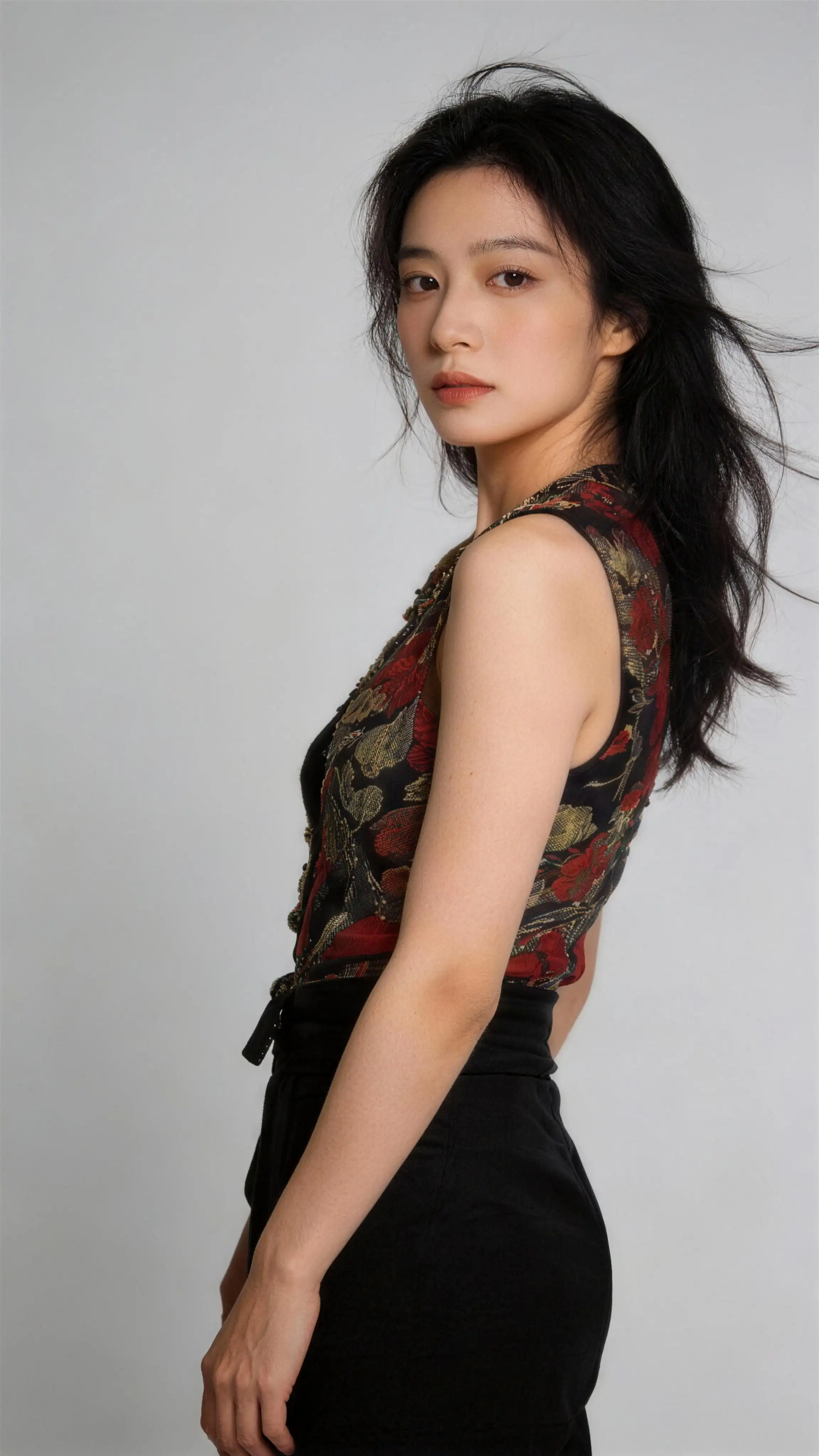
Prompt
Use the facial features of the model from the first image as reference. The model appears close to the camera wearing the outfits from reference images 2–6, striking different poses: playful, cool, cute, surprised, and stylish. Each pose features a different outfit, with quick cuts accompanying every outfit change. The visuals should reference the video’s fisheye lens perspective, combined with ghosting, flickering, and psychedelic light effects to create a dynamic, high-energy look.
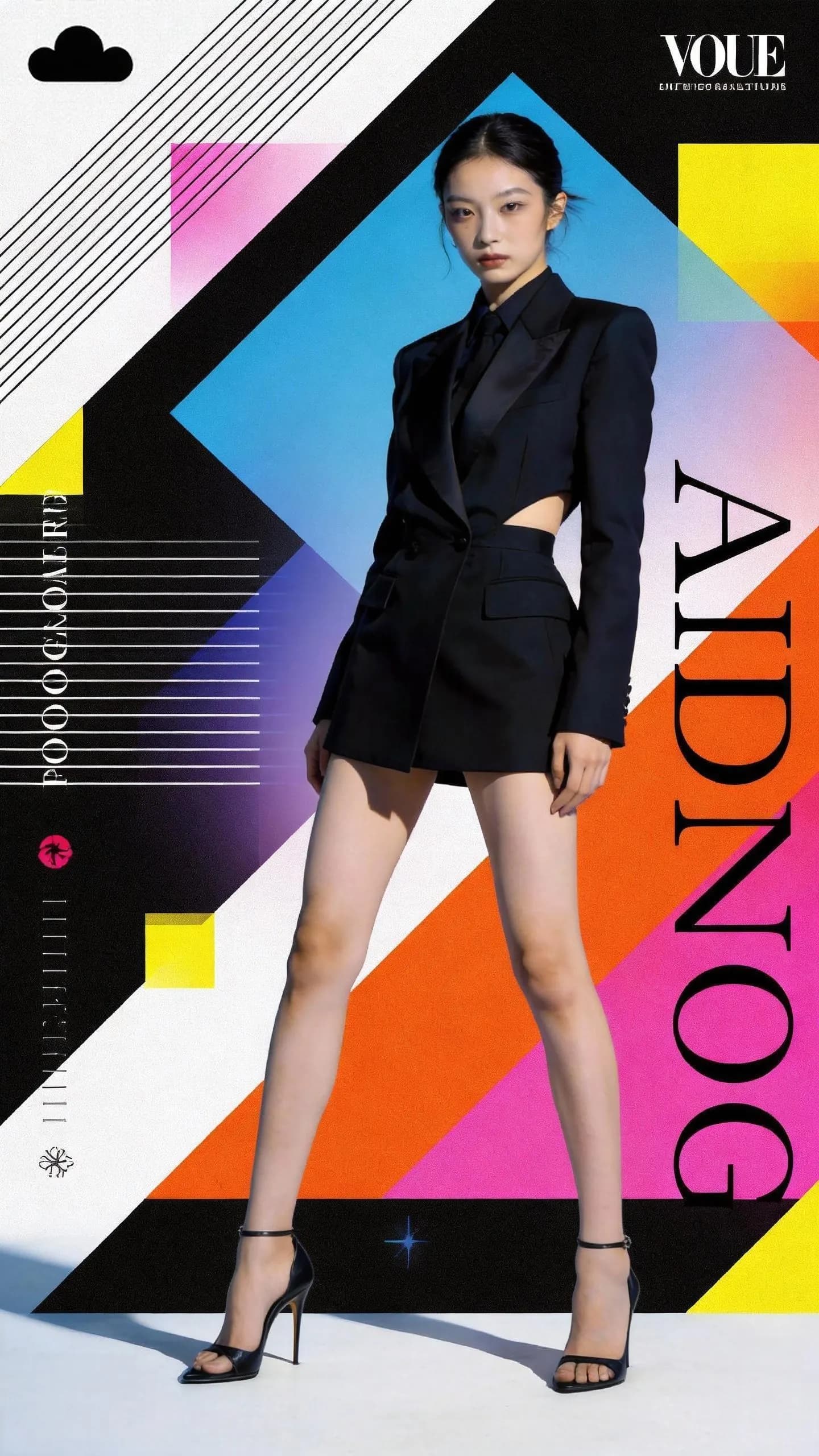
Prompt
The girl in the poster continuously changes outfits, with the clothing styles inspired by @Image1 and @Image2. She is holding the bag from @Image3, and the overall pacing and rhythm of the video should follow @Video.
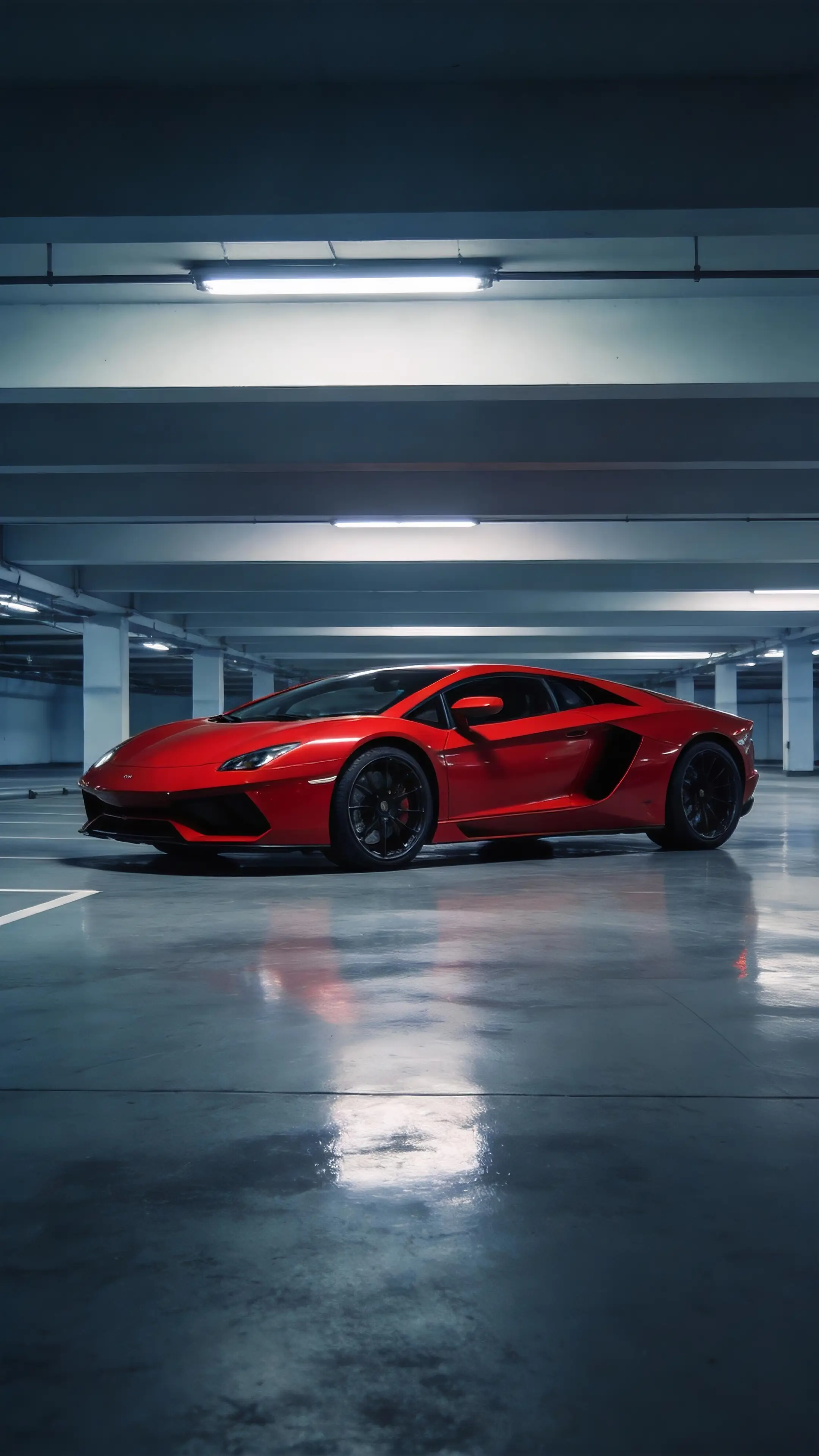
Prompt
Using the camera movements and editing rhythm from @Video1 as reference, recreate the sequence with the red supercar from @Image1.
Turn Any Photo into a Motion Clip
From portraits and products to lifestyle scenes, image-to-video helps you add natural movement while preserving the visual identity of your source asset.
Why Use This Image-to-Video Workflow?
Built for practical production, this workflow combines simple uploads with controllable motion prompts so teams can create usable video assets faster.

Simple Upload to Start
Drop in a source image and begin generation quickly without complex setup steps or tool switching.

Prompt-Guided Motion
Describe how elements should move, then steer pace, camera feel, and animation style through iterative prompt edits.

Flexible Model Selection
Use different models for different goals. Seedance 2.0 is one option when you want stronger control over motion behavior and consistency.

Fits Multiple Use Cases
Create clips for ads, social media, product pages, tutorials, and internal concept previews using one consistent workflow.
How to Use Image-to-Video in the Workspace
Create animated clips from still images in three straightforward steps.
FAQ
You can use common image formats such as product photos, portraits, illustrations, and branded visuals, as long as they meet workspace upload requirements.
Generation time depends on model selection, prompt complexity, and queue load. Most jobs finish in minutes, while more complex requests may take longer.
Yes. You can tune prompts and generation settings to guide motion style, camera behavior, pacing, and overall visual direction.
Image count limits vary by model and mode. The workspace validates your input and will guide you if a limit is reached.
Clean Motion and Reliable Detail
The workspace is designed to keep motion transitions smooth and visuals readable across common output formats. Final quality depends on source image quality, prompt direction, and selected model.